
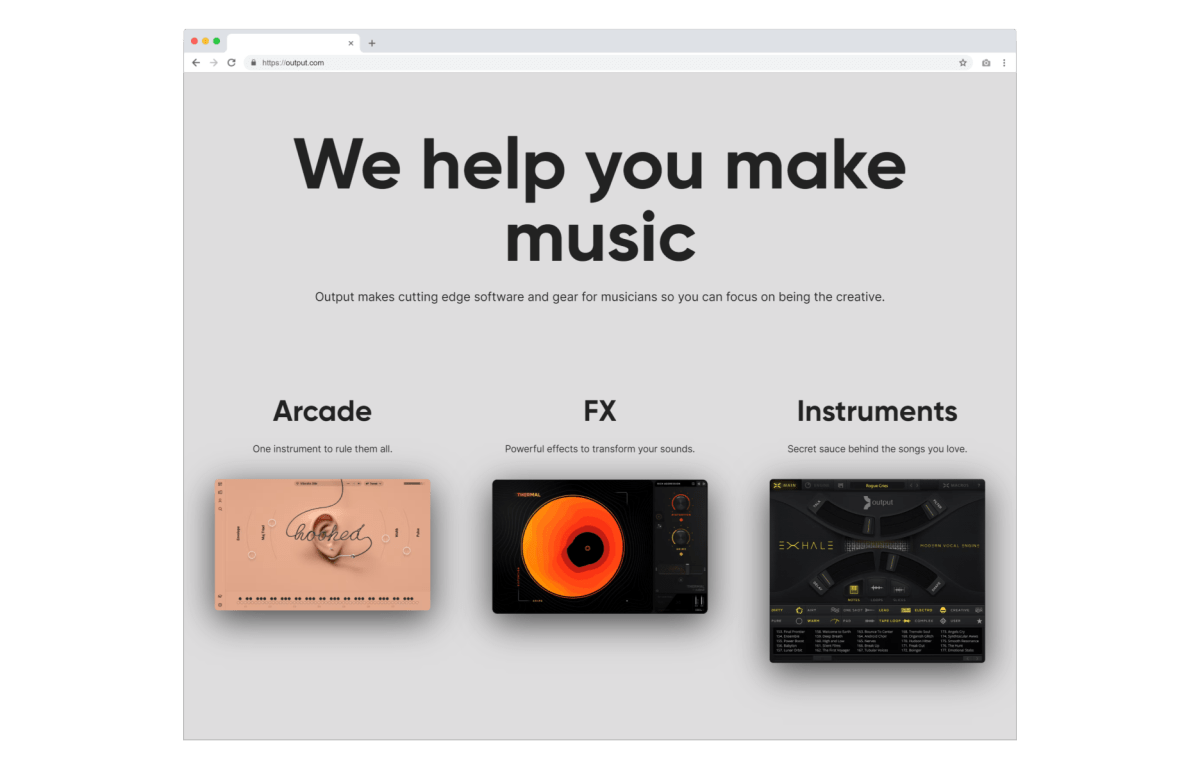
Software for hitmakers
Output is a Los Angeles-based company that develops music software and gear for musicians, film composers, and music producers. Their products have been used by hitmakers like Kendrick Lamar, Bjork, Justin Timberlake, Rihanna, Imagine Dragons, Coldplay, and Drake, as well as in scores to films and shows such as Game of Thrones, Stranger Things, Black Panther and more.
As a software firm, their teams are software-forward and equipped with the best-in-class tech to support their respective functions. For the accounting team at Output, that means using GoFullPage alongside the important work of keeping Output’s financials in order.
Showing your work with screenshots
Pro-tip for accountants: always screenshot what you’re doing, as you’re doing it.
Colleen Broyles, Senior Accountant, Output, Inc.
Accounting is a constant process of showing, proving, and verifying your work. There are team members, internal stakeholders, and external auditors who need to understand how information was created, what source it came from, and when it pertains to.
For accountants, and anyone who is required to “show their work”, screenshots with timestamps are the most fool-proof way of integrating information across various sources.
Here are some examples provided by Output’s accounting team of scenarios where they have been saved by recording and documenting their work as it happens:
External Compliance
Audits, generally yearly, require a third party to review the firm’s financial records to validate the firm’s self-reporting. The process can end up becoming a complex maze of tracking down receipts and other evidentiary proof. Output’s accounting team makes their own lives easier by supplying screenshots of their work to auditors, which is an easy-to-understand format for a third-party to parse through. The Output team creates screenshots with GoFullPage as they create their documents, saving them the time it might take to laboriously recreate a paper trail after the fact.
Internal Process
External auditors aside, internal stakeholders requiring proof of work can also greatly increase the demands on a small, but nimble accounting team. Output’s accountants have decided to make the process all that much easier by creating Excel sheets for source documentation: they can pull a sales report off of a given data source, and then save that screenshot as a tab on Excel. What might have previously required arduous step-retracing is now offered up in a clean, comprehensive document.
An accountant’s best friend: GoFullPage’s premium blur feature
GoFullPage contains helpful tools within the Editor for aiding an accountant creating a paperwork-breadcrumb trail: clickable URL, timestamp, datestamp, and blur.
Using GoFullPage’s blur feature
Blur is the best feature for redaction!
Colleen Broyles, Senior Accountant, Output, Inc.
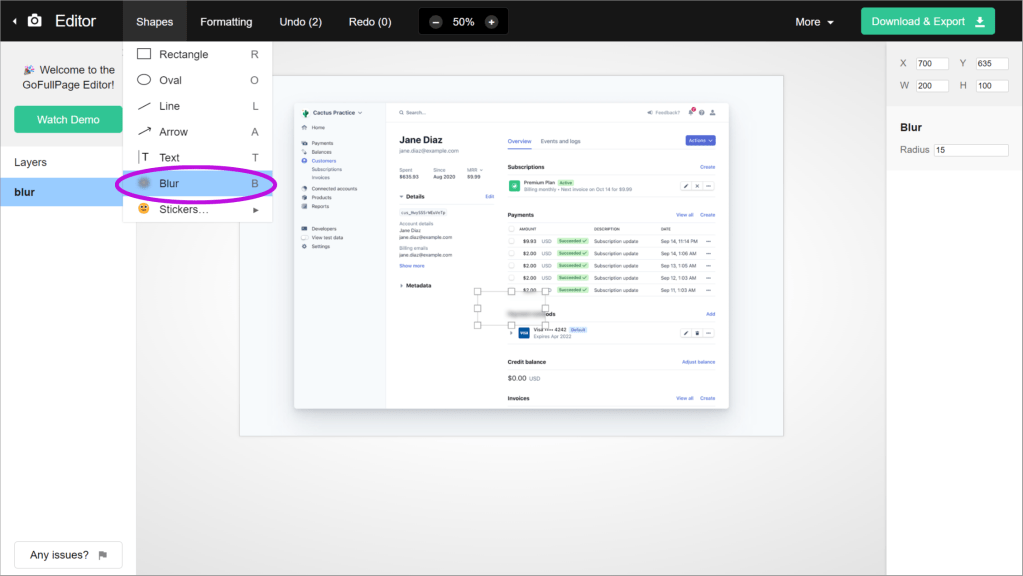
To blur a section on a GoFullPage screenshot, visit GoFullPage’s Premium Editor by clicking on the “Edit” button in the middle of the GoFullPage toolbar:

Once in the Editor:
- Click on the “Shapes” menu and select “Blur”.
- A menu will appear on the right.
- Select the blur radius of your choice, and resize/drag the blur element to your liking.
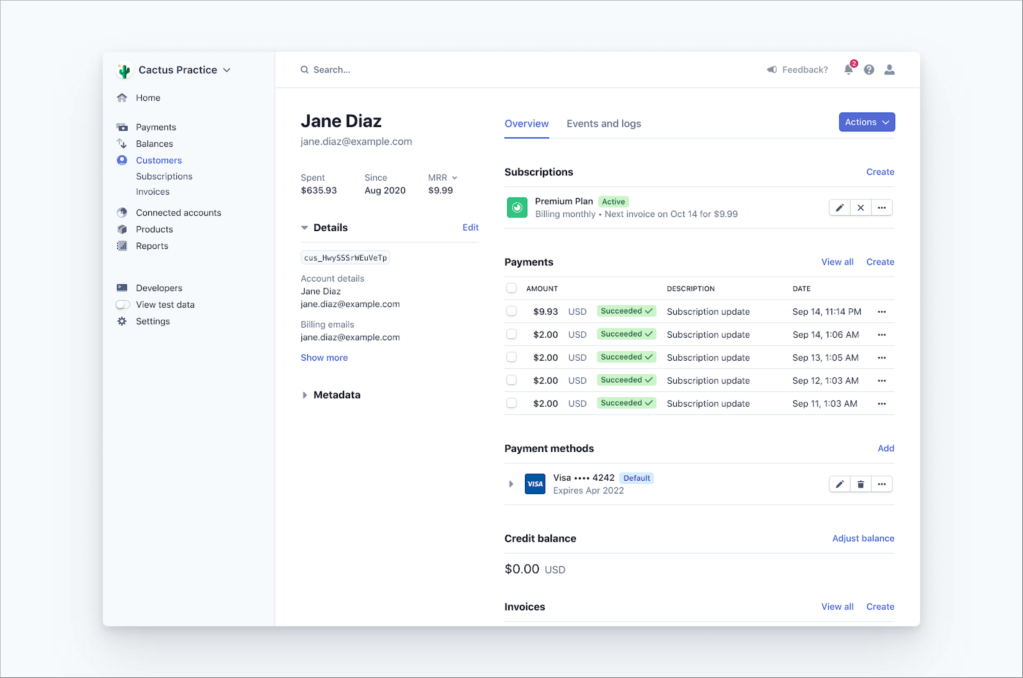
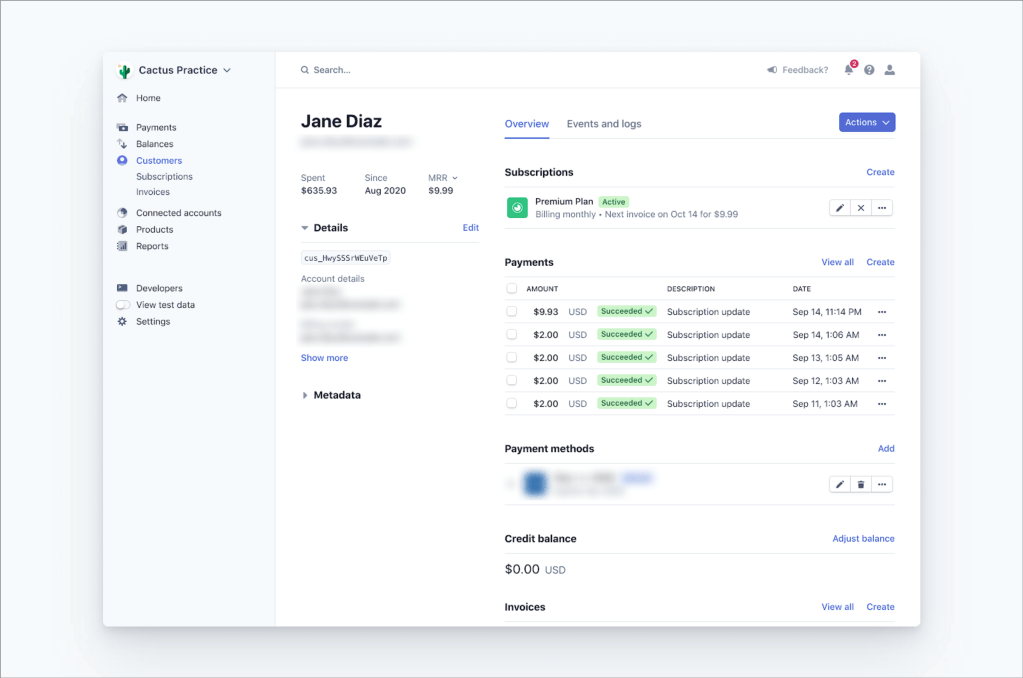
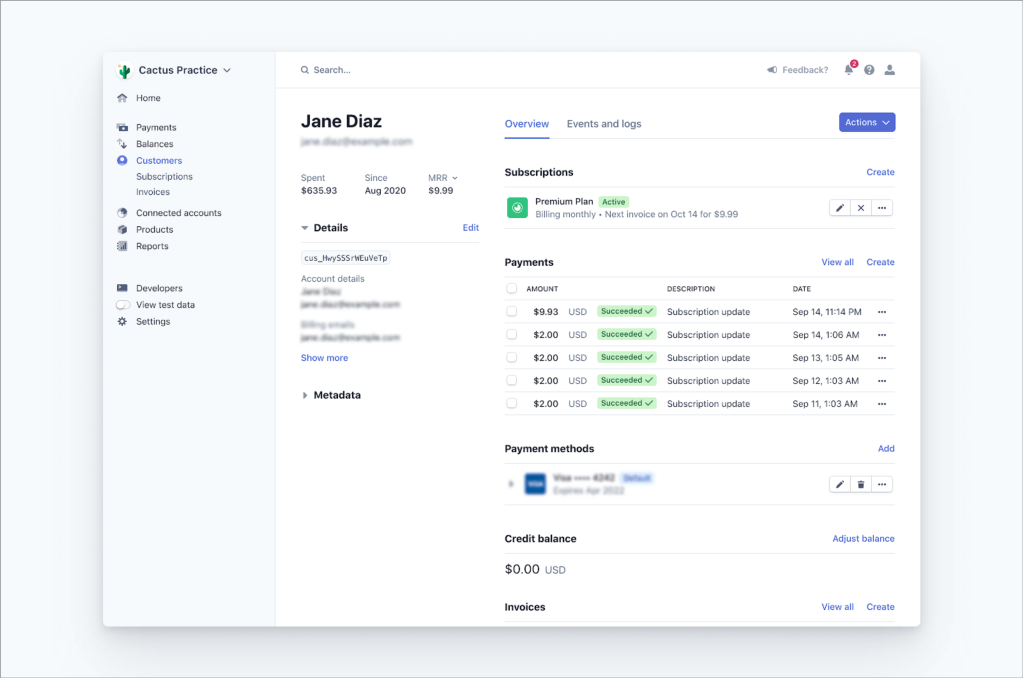
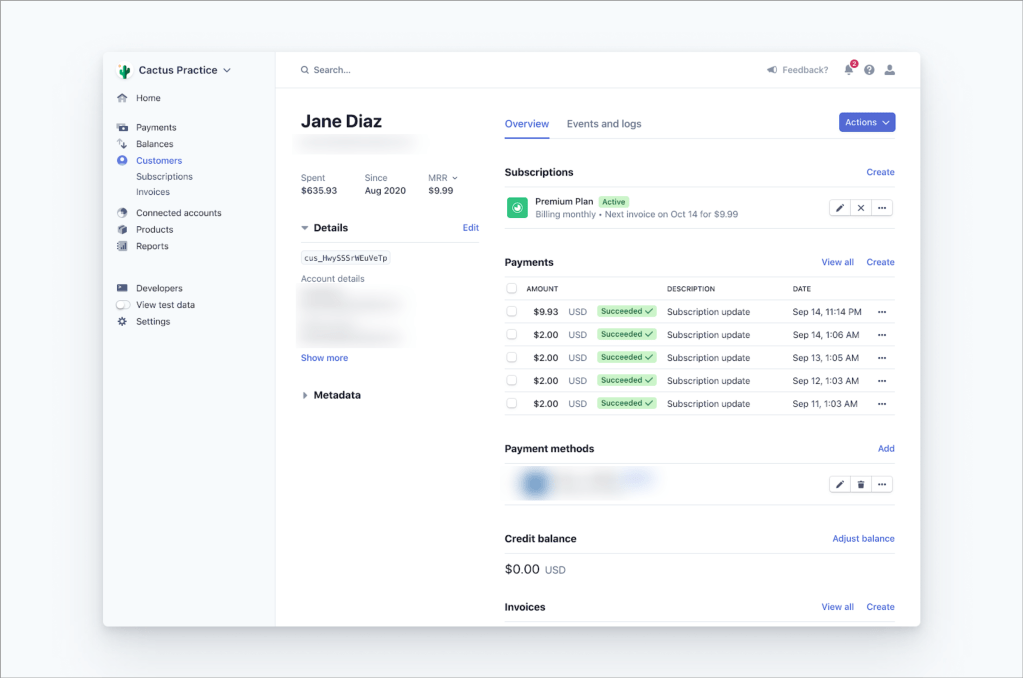
Compare the two screenshots below to see how blur works (from top to bottom: screenshot with no blur, screenshot with blur over payment and contact information):
Increasing blur radius will make the blur stronger or weaker (top: a blur radius of 5, bottom: a blur radius of 30:
With the GoFullPage Editor, I can add a couple of annotations very quickly (which used to involve 700 extra steps to open a different program). I know I’ll be using this the rest of my life!
Colleen Broyles, Senior Accountant, Output, Inc.
Helpful links
To check out Output’s products (intended for music-lovers at all levels): https://output.com/
To download our free app: GoFullPage for Google Chrome or Microsoft Edge
To use our premium tools: GoFullPage Premium
To contact GoFullPage for an enterprise account or demo: fill out this form
 GoFullPage Blog