
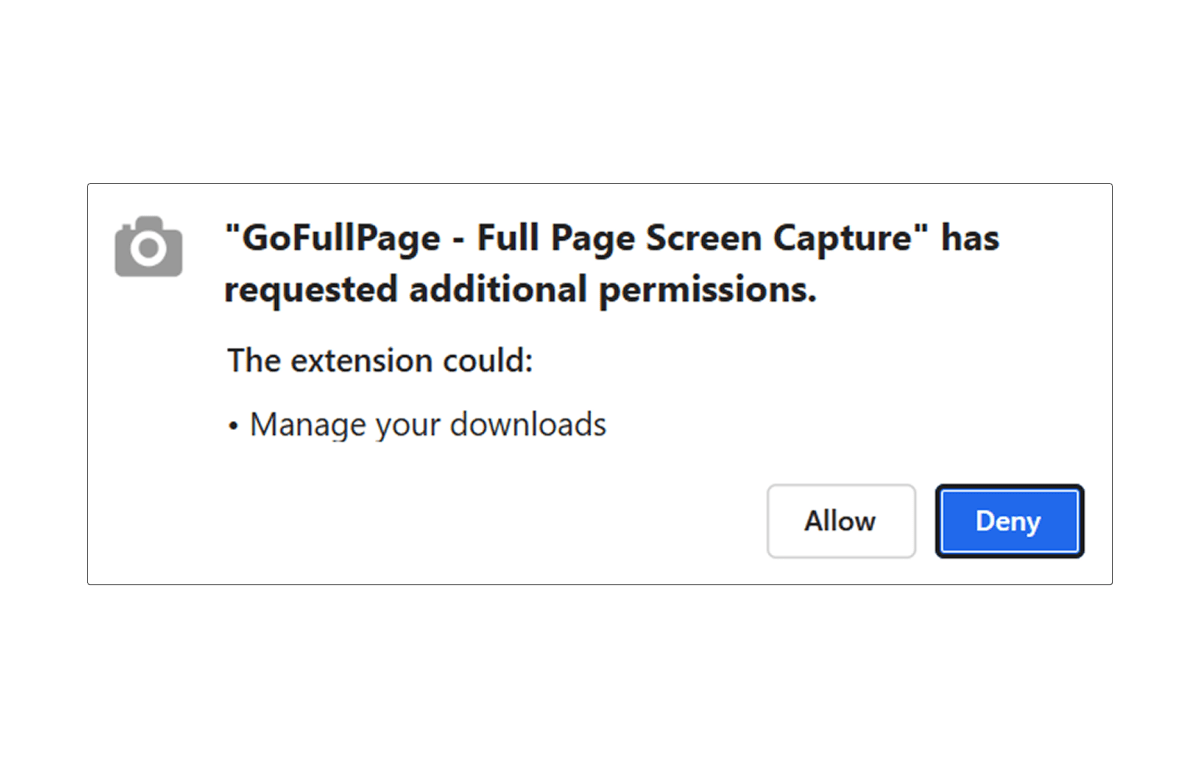
You’ve installed GoFullPage and have started capturing full-page screenshots: quickly, easily, and exactly as you see the webpage on your screen. But at some point, you may come across a permissions request that gives you pause. What does it mean, and why are we asking for it? We designed GoFullPage to request the fewest permissions necessary, but some permissions are still required in specific situations.
We wrote this short guide to explain the permissions our extension requires, what they allow us to do (and not do), and how we’ve designed our tool with privacy and security in mind, so that you can use GoFullPage with confidence.
Why GoFullPage requests permissions
GoFullPage only requests permissions when they are needed to perform a specific function. We will never request a permission preemptively, and never without a clear explanation. Below, we break down the key permissions that might be requested, and what they allow the extension to do.
Downloads permission
The screenshots live locally within the extension on your browser, but if you want to download them into your local computer files, you might encounter this permission. The downloads permission is necessary to allow GoFullpage to save the screenshots into your downloads folder.
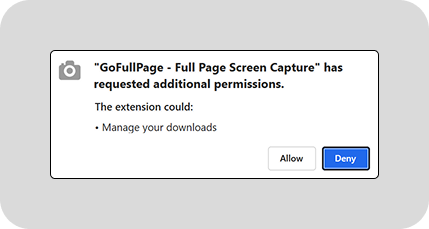
Without this permission, GoFullPage can still:
- Copy images to your clipboard
However, without the Downloads permission, GoFullPage cannot:
- Save the image
- Save files from the “Files” page (your screenshot history in GoFullPage)
- Download edited screenshots from our Editor


tabs, webNavigation and Host permissions
The first time you try to capture a page that includes an iframe (an embedded frame within a webpage), GoFullPage will prompt you to grant optional permissions. Before any browser-level request appears, we display a short explanation in-app to let you know what’s being requested and why:

Once “OK” is selected, the browser will show a dialog formally asking for the permission:
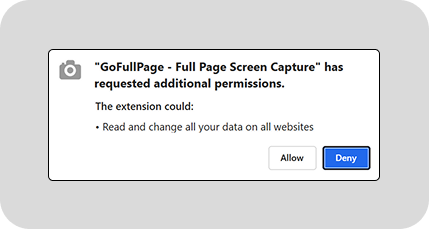
In order to scroll and capture content inside iframes, the extension needs access to tabs, webNavigation, and <all_urls>. Our extension works by scrolling the page and updating the CSS dynamically to create a full page screencapture. This requires a temporary, limited ability to read and modify data on the page strictly for scrolling and rendering the screenshot.
Important:
- Despite the language “Read and change all your data on all websites”, the extension still only runs on the current tab when you activate it. It does not execute during regular browsing without clicking on it.
- If you select “Deny”, GoFullPage will not run on the page being viewed, but it will function normally on other pages without iFrames!
Managing Permissions
To view your permissions:
- Open your GoFullPage Options page.
- Scroll to the bottom where you’ll see the Permissions section.
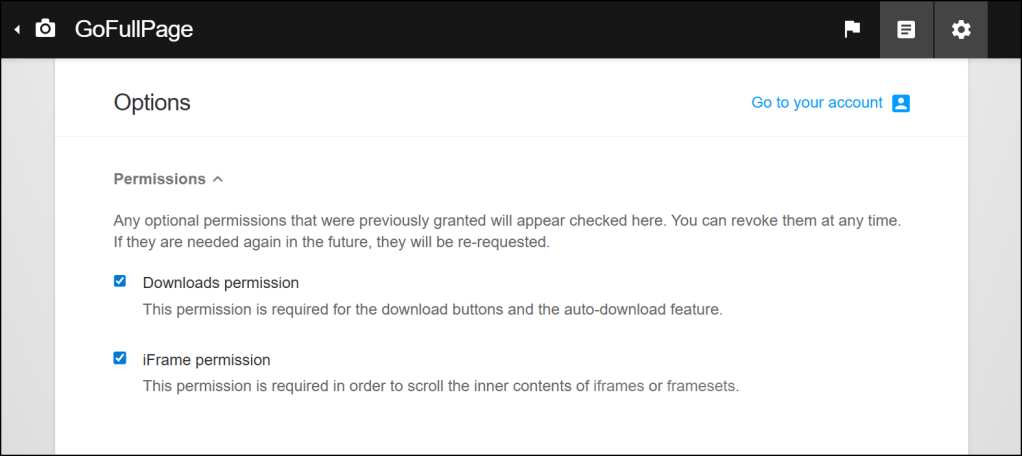
Please note: Permissions cannot be granted in advance via the Options page. They must be requested contextually when the extension encounters a specific need for that permission. This is a browser security feature, to ensure that extensions are not requesting and being granted unnecessary permissions.
Helpful links
Start capturing securely today with GoFullPage — the trusted choice for high-security environments.
To download our free app: GoFullPage for Google Chrome or Microsoft Edge
To use our premium tools: GoFullPage Premium
To request a demo of our Enterprise product: GoFullPage Enterprise
 GoFullPage Blog