
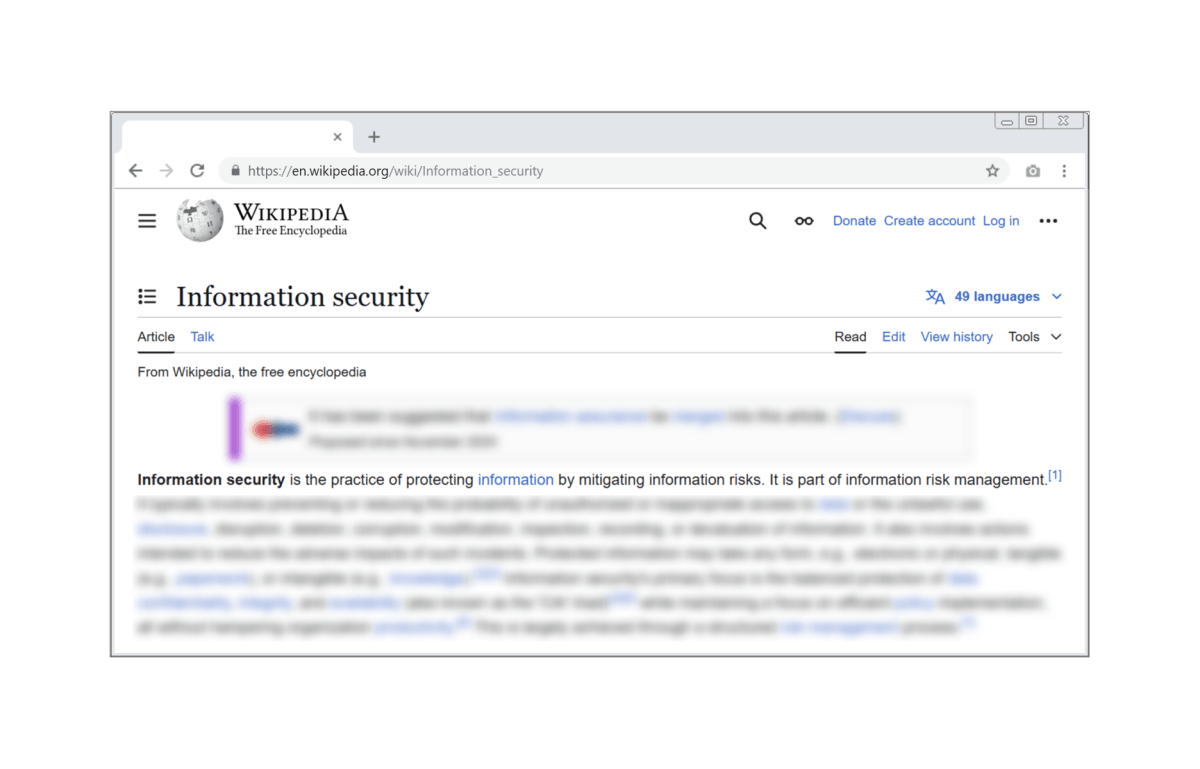
In highly regulated industries—such as government, finance, legal, and healthcare—securely recording information in the web browser is not always as simple or straightforward as hitting “print screen”. Screenshots may contain sensitive data, and mishandling them risks compliance violations or data exposure. A leak this past spring involving over 21 million screenshots from a major employee monitoring app highlights the risks of using tools that store or transmit user data to the cloud—an alarming reminder of what can happen when privacy is not prioritized.
GoFullPage will never expose your data. We’re built on a fundamentally different model: your screenshots are processed and stored locally, not stored in our servers, and never uploaded, tracked, or shared. Our extension is designed for security-first organizations who need to capture the web exactly as it appears—without compromising privacy or control.
A Tool That Prioritizes Privacy
The first step to safe screenshotting is choosing a tool that doesn’t collect or transmit data. We’ve built GoFullPage, the leading full-page screenshot extension for Chrome and Edge, with security in mind:
- No access to your browsing: The GoFullPage extension only runs when you activate it to take a screenshot. It has no access to your regular browsing activity.
- Local storage only: all screenshots are saved on your local machine without ever being uploaded to any servers.
- No tracking: We cannot access user screenshot history or see the URLs being captured. This data lives only on your computer.
Screenshots Are Never Sent to the Cloud
Unlike cloud-connected tools that upload your screenshots to remote servers, GoFullPage operates fully within your browser. This means:
- Your screenshots are stored only on your device unless you manually move or share them.
- There’s no risk of unintentional cloud syncing, data leaks, or external access.
- You retain full control over when and where your screenshots are saved.
This design is ideal for sensitive workflows where cloud connectivity is restricted or prohibited.
Redact Sensitive Information Instantly
Our Premium blur tool allows you to redact any sensitive details (like personal information, internal URLs, or case numbers) before saving or sharing your screenshot. This ensures confidentiality is maintained without needing additional software.
To blur information on a specific screenshot, visit GoFullPage’s Premium Editor by clicking on the “Edit” button in the middle of the GoFullPage toolbar:

Once in the Editor:
- Click on the “Shapes” menu and select “Blur”.
- A menu will appear on the right.
- Enter the blur radius.

Here is a before and after of a screenshot with blur (radius: 10) applied:
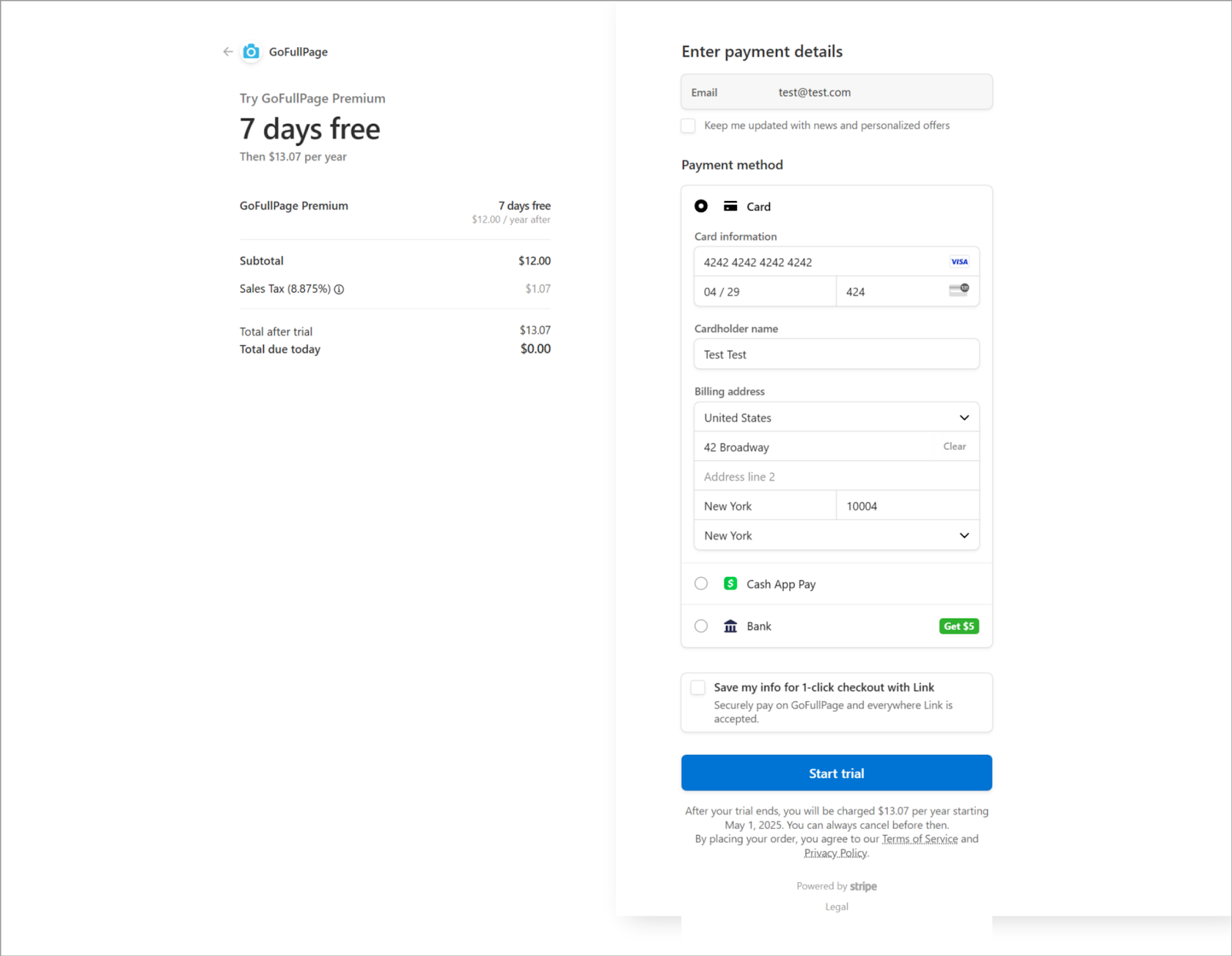
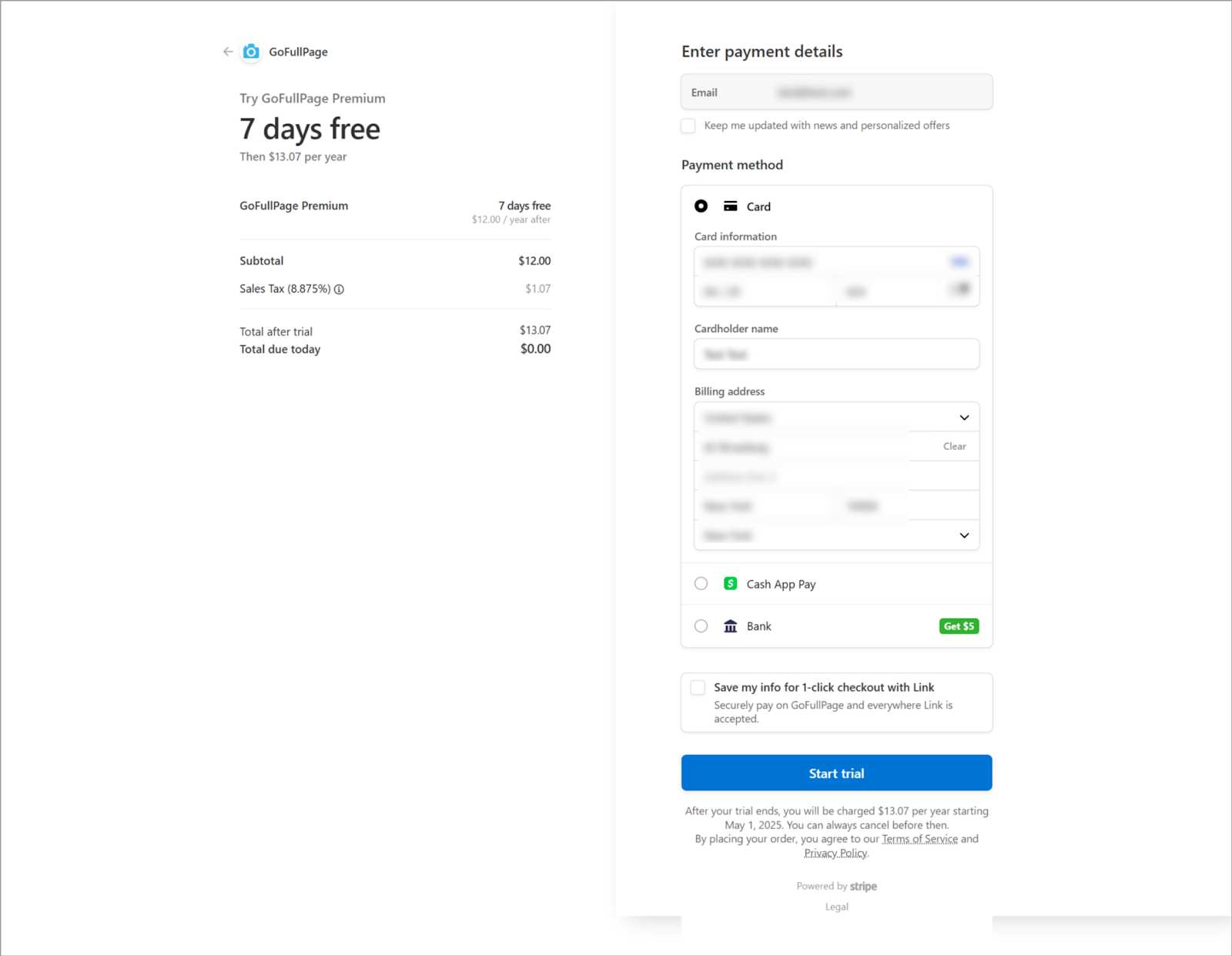
Click through the below slideshow to see how the heaviness of the blur varies with different radius lengths:

For the highest-security redaction: we would recommend adding a black line over the sensitive information, after blurring. Our exports are a flat image, so it would be impossible to extract the text at this level of redaction:

Enterprise-Ready: Security Reviews and Audit Support
GoFullPage is trusted by some of the world’s most security-conscious organizations. We’ve successfully completed security audits and compliance reviews for legal firms, financial institutions, and government agencies. Upon request, we’re happy to provide the documentation needed to support your organization’s IT and security requirements.
Our straightforward architecture and transparent privacy practices make it easy for your security teams to vet and approve GoFullPage for internal use. We’re committed to supporting enterprise customers with high standards.
Simple, Secure, and Trusted
Millions use GoFullPage for reliable, high-fidelity screenshotting. GoFullPage captures exactly what’s on your browser, which is crucial for accurate recordkeeping, documentation, or auditing purposes, and we’ve designed GoFullPage with your privacy in mind. Whether you’re documenting workflows, archiving for compliance, or sharing internal systems, you can trust GoFullPage to do it securely.
Helpful links
Start capturing securely today with GoFullPage — the trusted choice for high-security environments.
To download our free app: GoFullPage for Google Chrome or Microsoft Edge
To use our premium tools: GoFullPage Premium
To request a demo of our Enterprise product: GoFullPage Enterprise
 GoFullPage Blog
3 replies on “How to Safely Screenshot Webpages in High-Security Environments”
I always thought that the Chrome Extension of Go Full Page was free?
LikeLike
Hi popsbarry! GoFullPage does indeed offer free, unlimited screenshots of full webpages. The promise of security we make here goes for anyone taking screenshots using GoFullPage, whether they are a free or paying user. For anyone needing additional annotating or editing tools (such as the Blur feature described in this article), we offer various paid options! I hope this clarifies.
LikeLike
I haven’t been able to get Go Full Page to work lately on my HP ENVY Laptop 17-cgxxx. Windows 10 OS. Any ideas why that may be?
LikeLike